- You can find your required courses for planning under "Requirements & Courses" on the right side of the page either on single or multi-semester view.
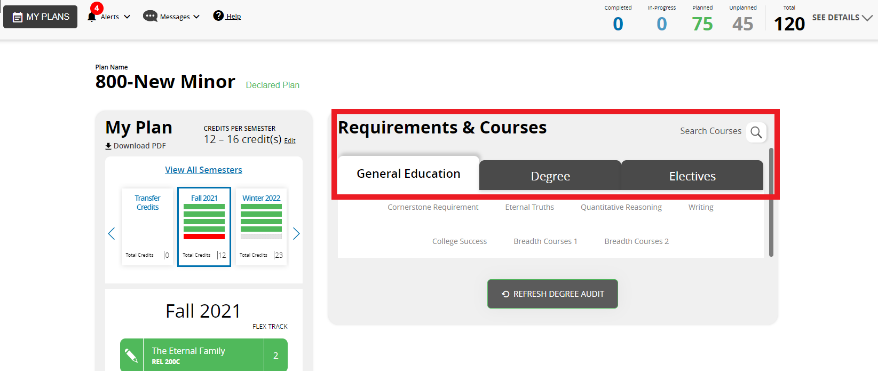
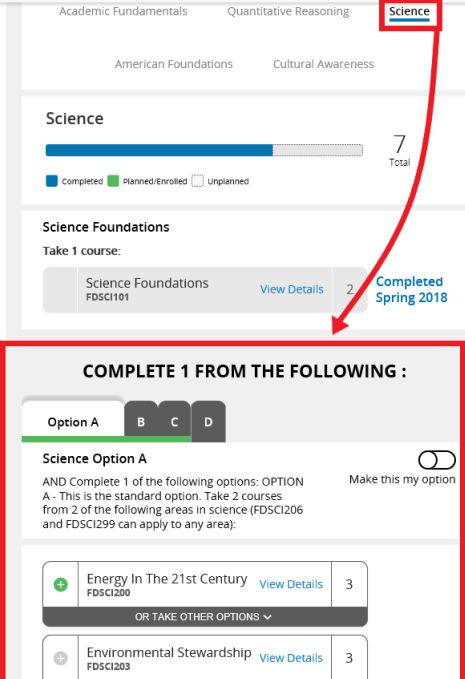
- You can click on Generals and you will see all the subcategories.
- Required courses will appear below
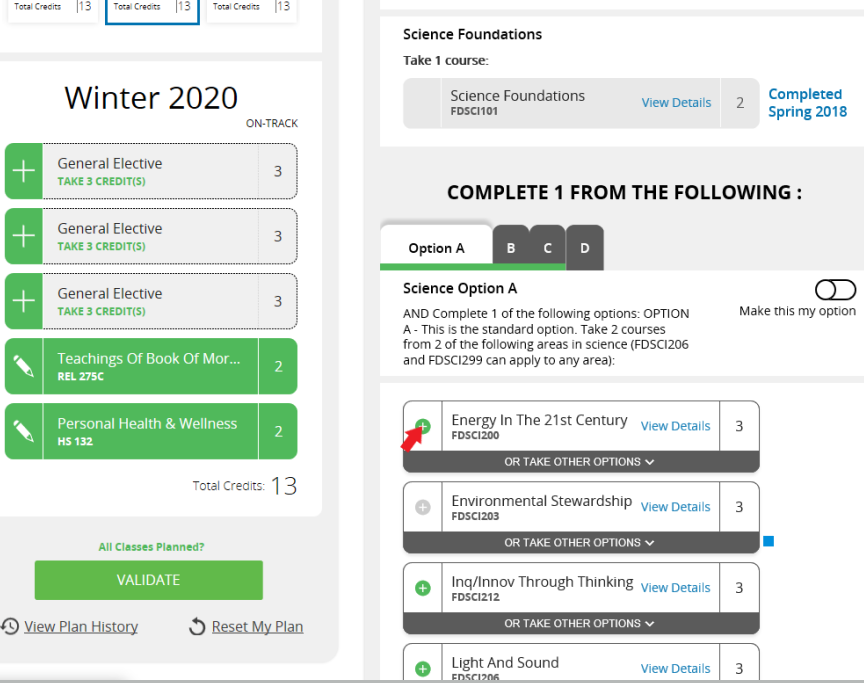
- Select a course by clicking on the green plus sign next to the course.
- A window pop-up will show the different semesters course is available.
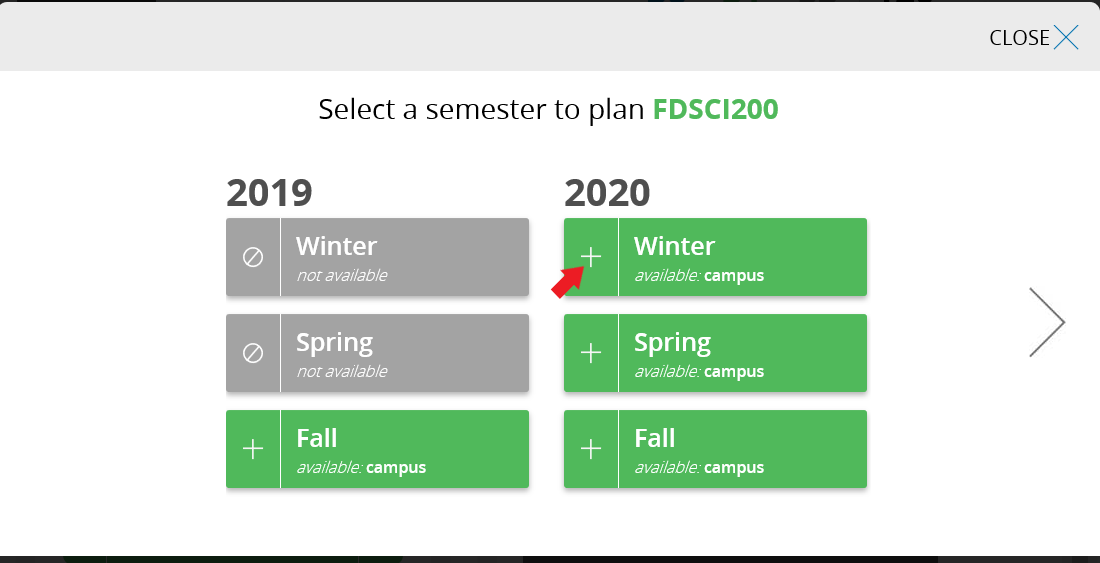
- Select desired semester by clicking on the desired box.
- Course will appear on the semester chosen.
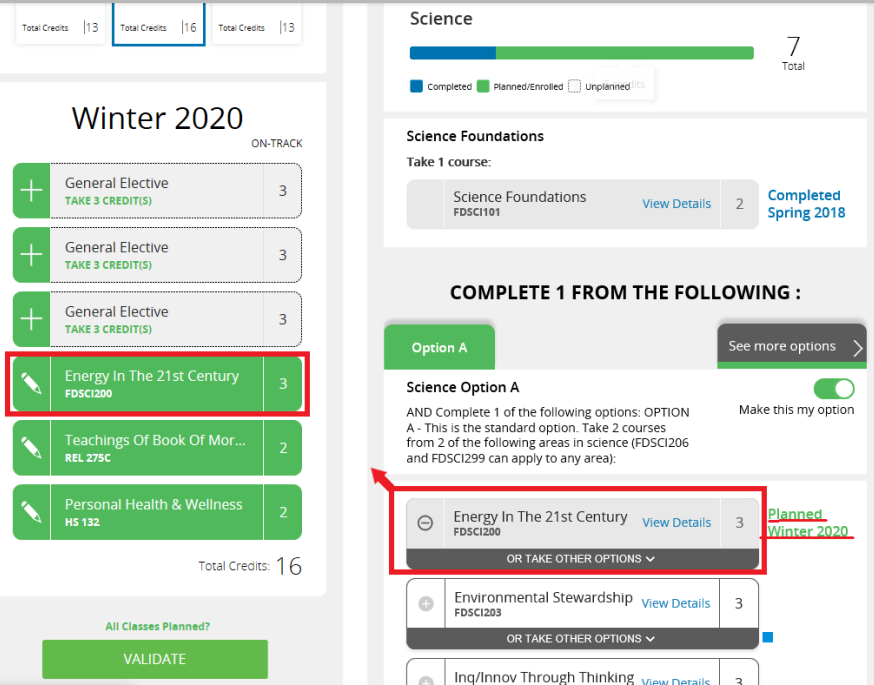
- Planned courses will turn gray and show on the Semester chosen.
How To Switch Courses Between Semesters
Drag and Drop Feature
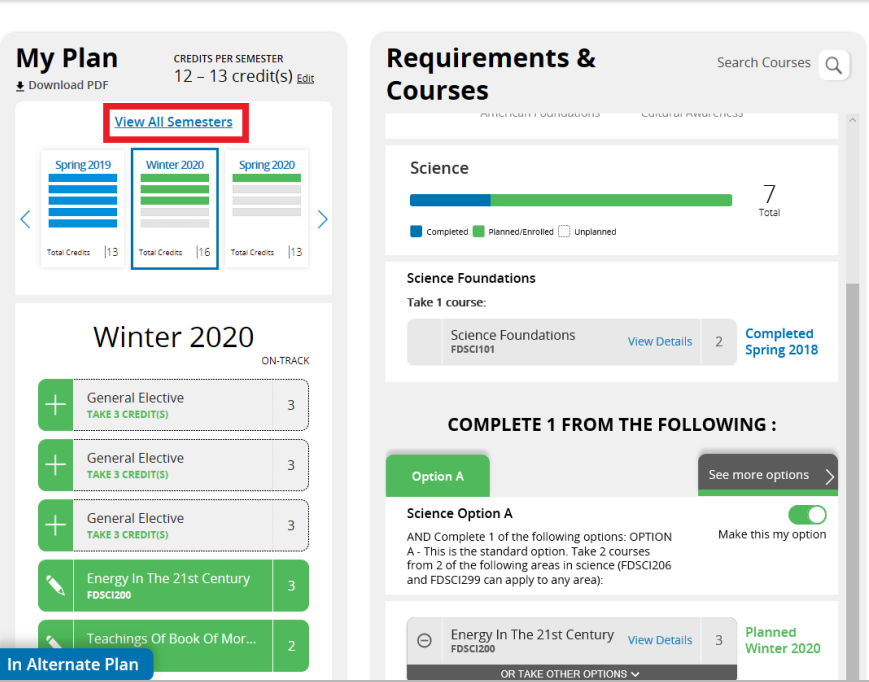
- First you have to switch to multi semester view by pressing "View All Semesters."
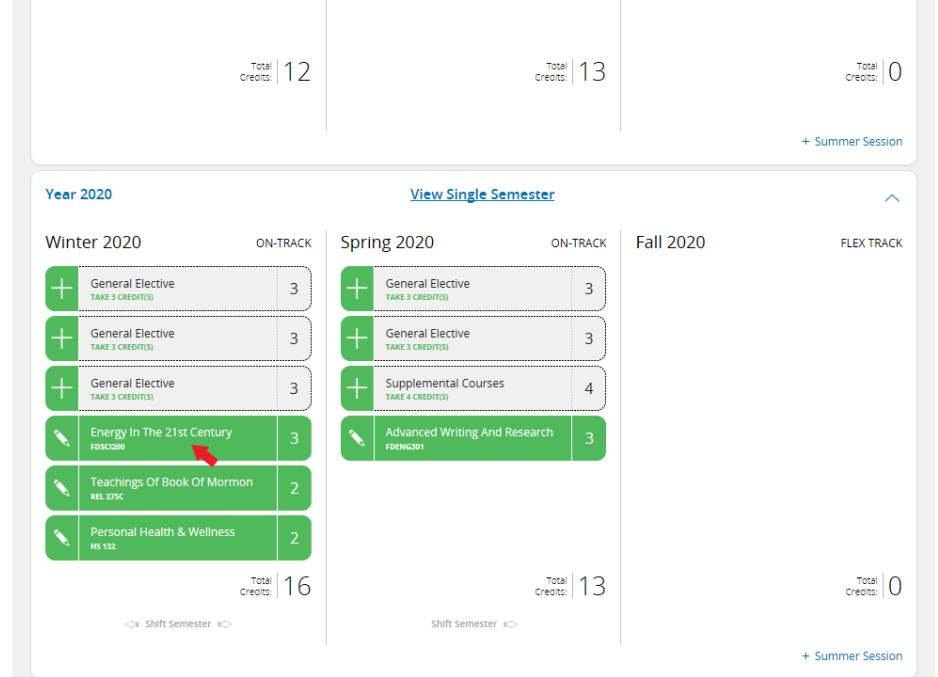
- Identify course you want to move.
- Click, hold and drag to desired semester.
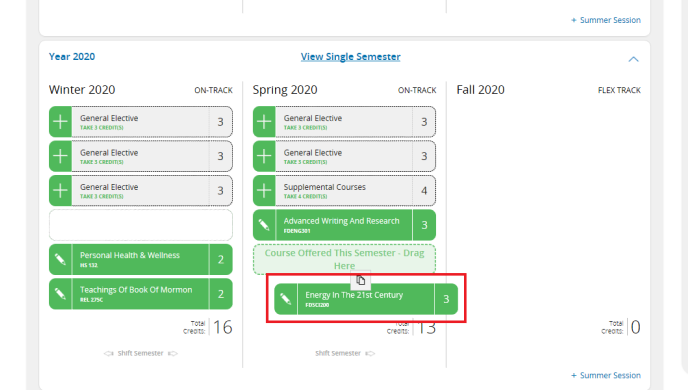
- When dragging courses over different semesters, you will see a dashed box showing that courses can be planned for that semester.
- Drop the course, and the planned semester will be changed.
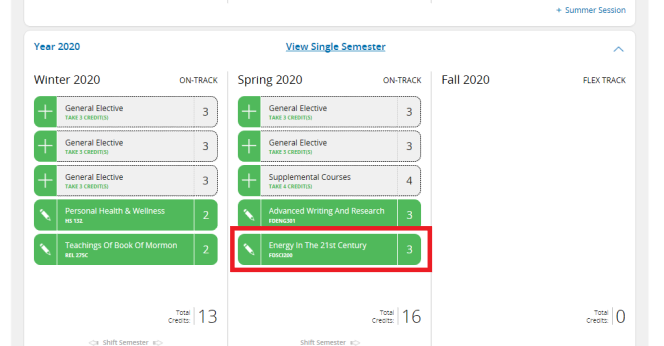
"Move Course" option
This feature is available on both single and multi-semester views.
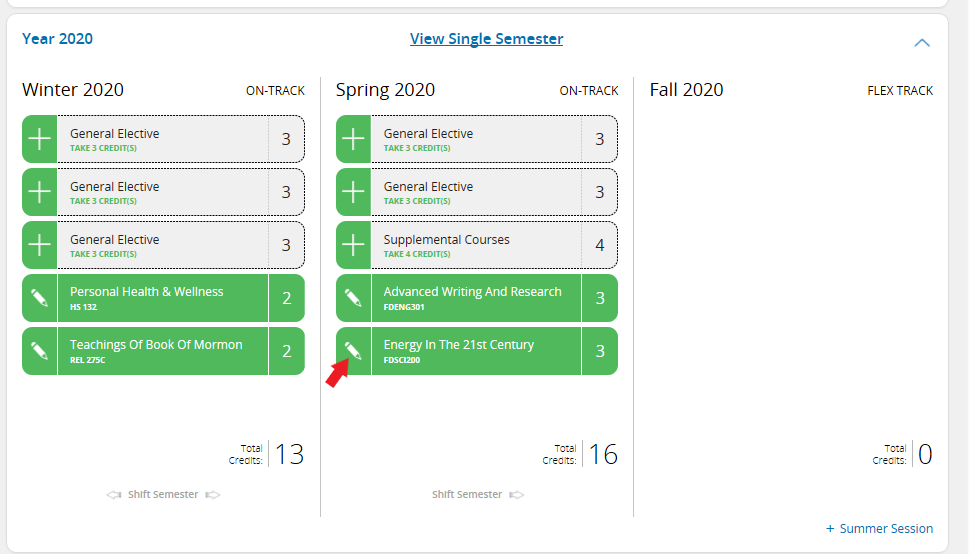
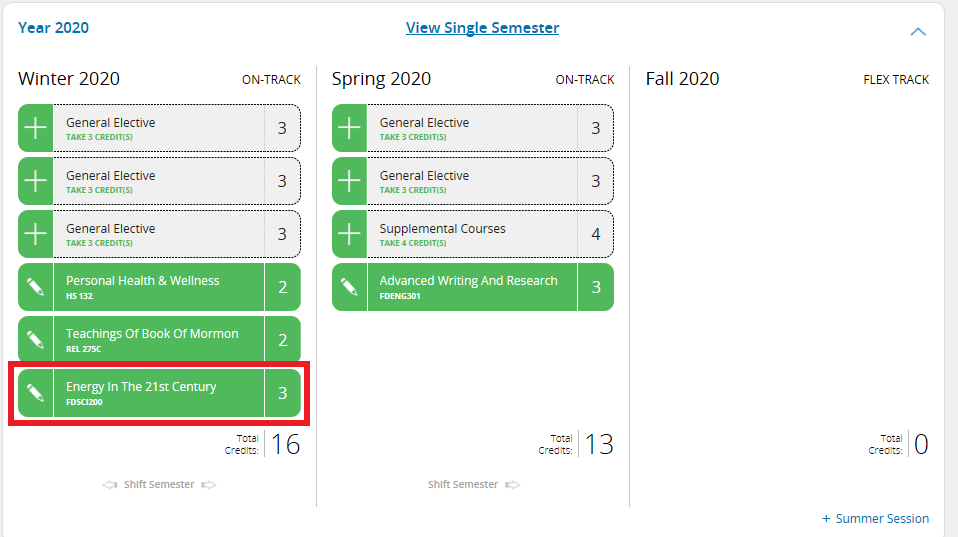
- Identify the course and click on the pencil icon.
- A little window will appear with various options.
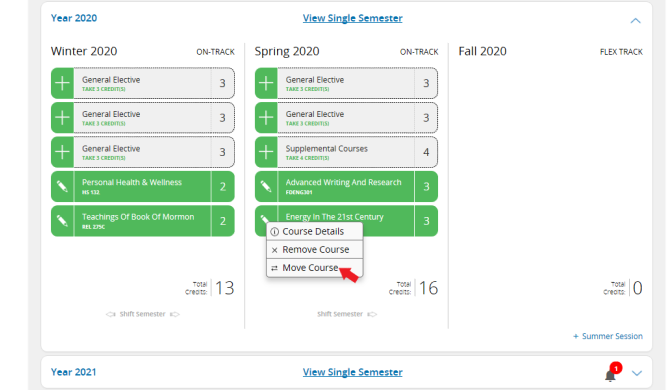
- Click the move course option.
- A window listing available semesters will appear for you to choose from.
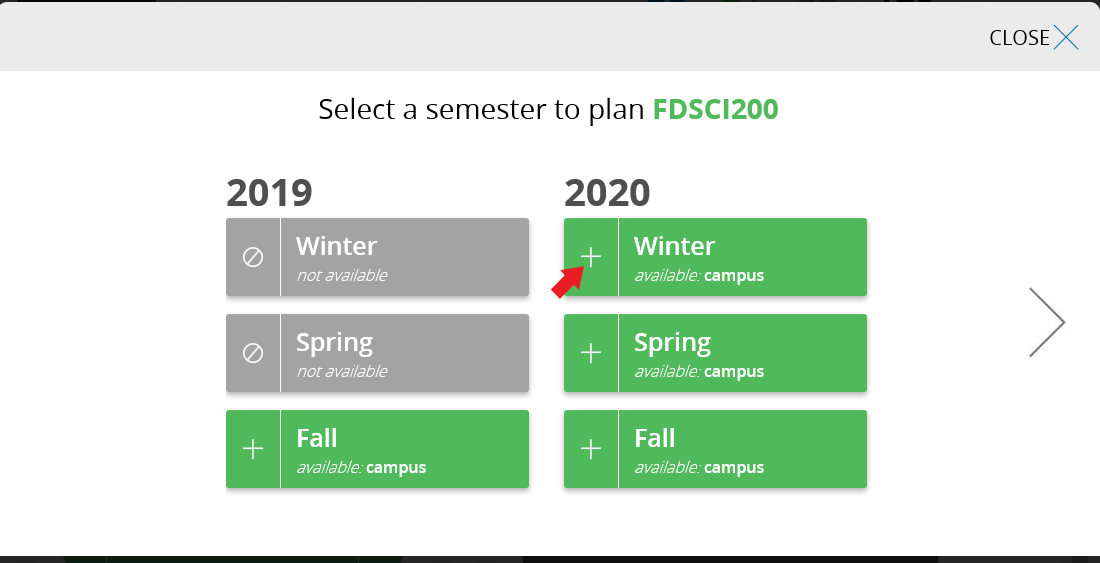
- Click the desired semester
- The course will be changed to the new semester.
0 Comments
Add your comment